Tutorials
Step by step, with the free tools here: from a photo to a print, from a broken STL to a clean one, from a picture to a material.
24 September 2026 · 3 min
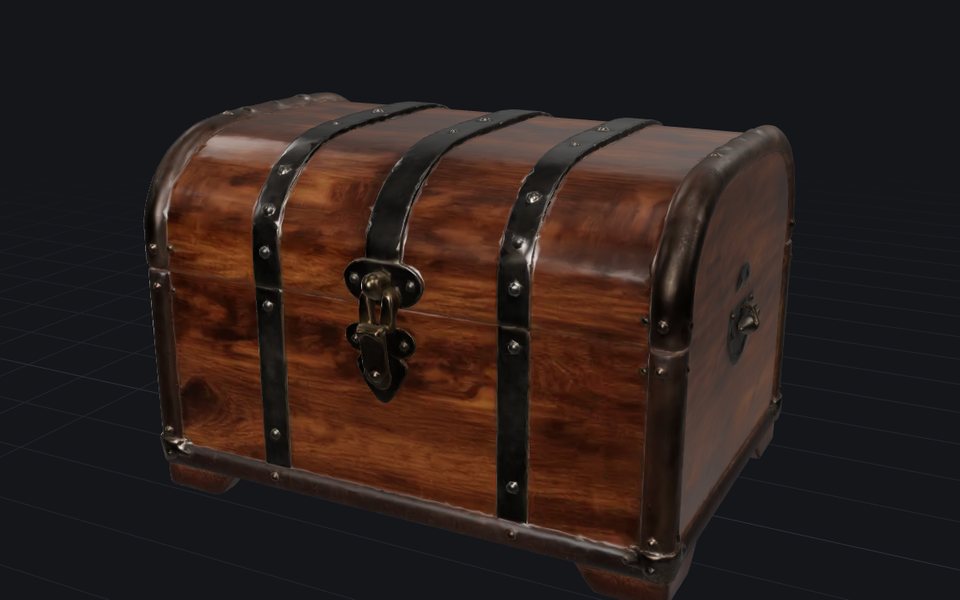
Image to 3D print: how to 3D print a picture
Turn a picture of an object into a sealed STL at the size you want, and know the filament cost and the printer it fits before you slice.

23 September 2026 · 3 min
How to fix an STL file that will not slice
Holes, flipped faces, loose fragments, overlapping parts: choose how far the repair goes, watch it run, and see every patch it made before you download.
22 September 2026 · 2 min
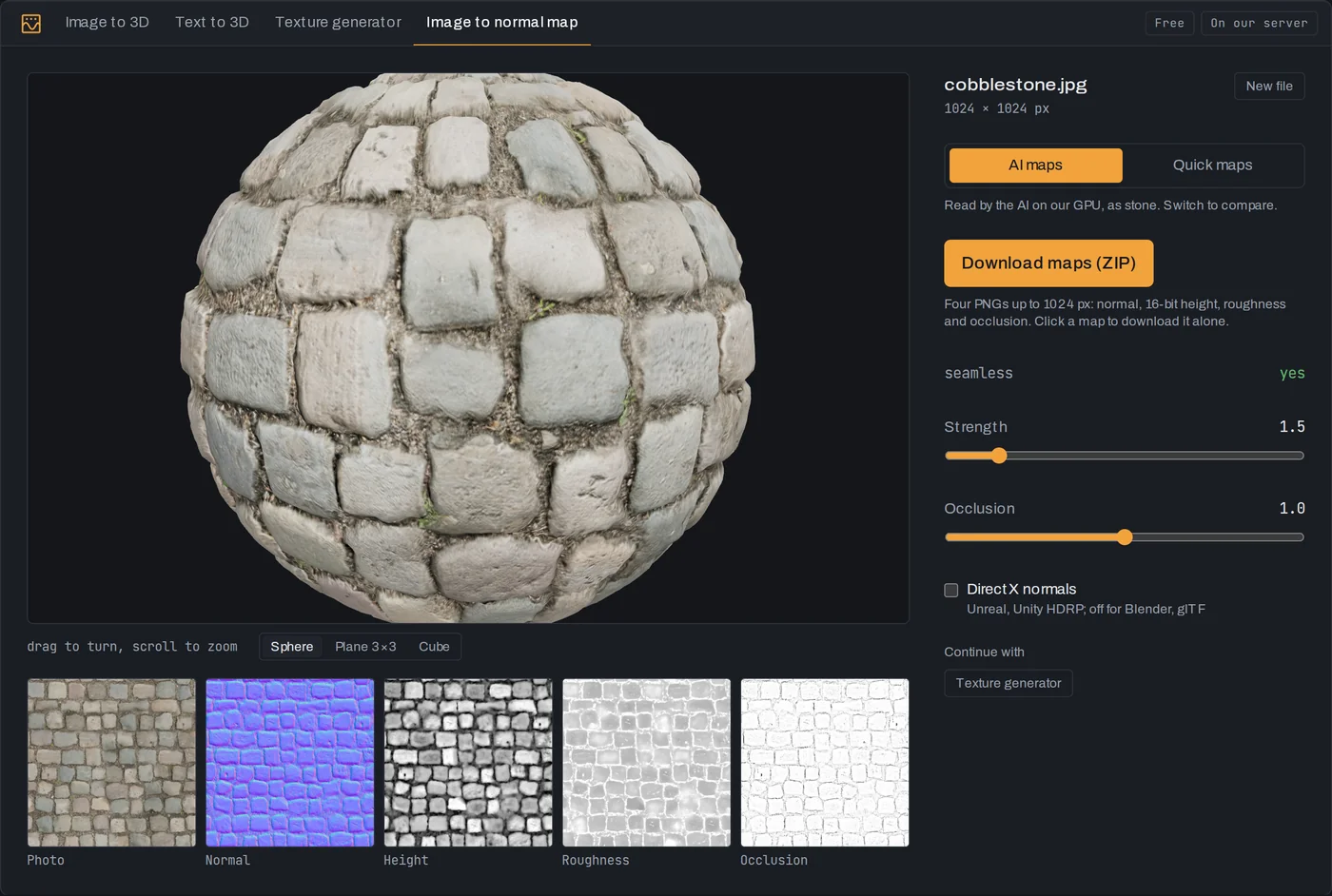
How to make a normal map from a photo
Turn a photo of a surface into normal, height, roughness and occlusion maps, read by AI on our GPU in seconds.
21 September 2026 · 4 min
Decimate in Blender, or reduce polygons online
Cut a heavy mesh down with Blender's Decimate modifier or in your browser: which mode to use, how far to go, and how to keep the shape and the textures.
20 September 2026 · 3 min
Take a generated model into Blender, Unity or Unreal
A generated GLB opens in Blender, Unity, Unreal and Godot. Set the origin, get clean quads if you will edit it, and fix the setting each engine trips on.